

Welcome to the beginner’s guide for Math Magic: Learn & Play. If you want to turn screen time into an active, educational learning experience for your children, you are in the right place. Math Magic makes arithmetic practice exciting by turning calculations into an arcade-style game where correct answers earn coins for real-world rewards.
This guide will walk you through installing the application, setting up player profiles, playing the game, and using the Parent Corner.
## Installing the App
Math Magic is a native Android game available on the Google Play Store. To begin, open the Play Store on your device and search for Math Magic: Learn & Play. You can also access the listing directly through this link: https://play.google.com/store/apps/details?id=in.co.onestoptech.mathmagic
Tap the install button to download the application to your phone or tablet. Once the download is complete, find the Math Magic icon on your home screen and tap it to launch the app.
## Setting Up Player Profiles
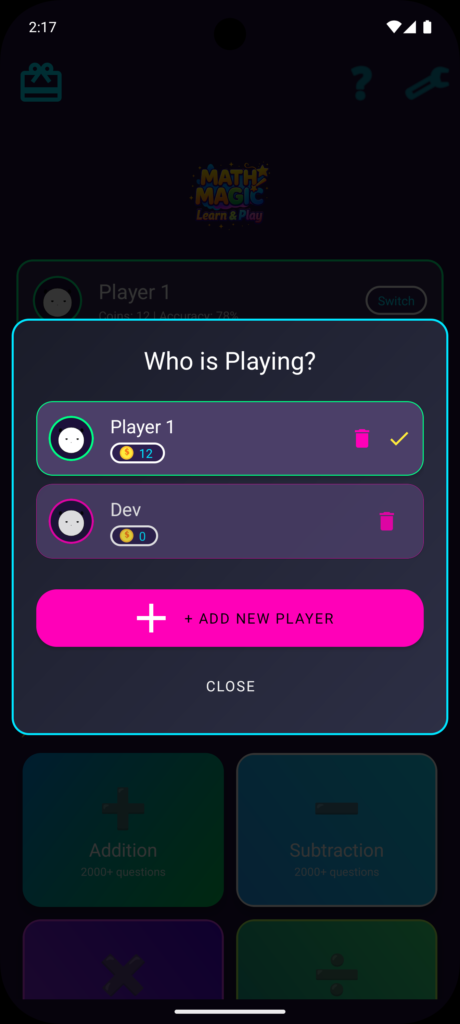
When you open the app for the first time, you will see a default profile labeled Player 1. If you have multiple children, you can easily create personalized profiles so they can track their scores separately.
On the main dashboard, tap the profile card at the top. When the profile switcher pops up, click the Add New Player button. Type in your child’s name and tap Create. The application will save the profile and assign it a vibrant neon color theme. Simply tap the child’s name card to activate it and return to the main dashboard.
## Starting a Lesson
Before starting a game, you can adjust the challenge settings on the main menu. There are three difficulty levels to choose from: Easy features single-digit numbers for beginners, Medium introduces double-digit numbers, and Hard contains complex three-digit equations. You can also toggle Survival Mode, where a single wrong answer ends the game.
Once you have set the difficulty, scroll through the grid of lesson cards and tap one to start. Standard options cover addition, subtraction, multiplication, and division, while advanced cards include Roman numerals, BODMAS, and money math.
## Playing and Using Voice Commands
Once the game begins, a math question will appear on the screen with four options below it. You can tap on the correct answer using standard touch controls.
Alternatively, you can play hands-free using voice commands. To do this, tap the microphone button on the game screen. When the icon glows, speak your answer clearly. The app will process your voice input locally on the device and submit the answer automatically.
## Redeeming Coins for Rewards
Answering questions correctly adds coins to the player’s bank, and building a correct streak earns large combo multipliers. To redeem these coins, tap the Gift icon on the top-left of the main menu to open the Reward Vault.
Children can browse the available coupons and click on the reward they want. Redeeming a reward will deduct the coins from their bank, prompting them to ask you for the reward in real life.
## Managing the Parent Corner
The Parent Corner allows you to customize the rewards, change settings, and view performance charts. To enter this section, tap the tools icon in the top-right corner of the main menu.
First, you will need to solve the Parental Gate arithmetic problem, which prevents young children from entering. Then, create your secure 4-digit PIN. Once inside, you can switch between different player cards to check accuracy charts and operation breakdowns. You can also click the add button to write custom rewards—like a special dessert or extra play time—and set the coin price.
## Common Questions and Troubleshooting
If the microphone does not respond during voice commands, check your device settings to make sure the app has microphone permission. You can do this by going to Android settings, selecting Apps, opening Math Magic, and verifying permissions.
If you forget your parental PIN, you will need to clear the application data in your Android settings to reset it, though please note this will also reset local player scores and coin banks.
The app does not require an active internet connection to play. Voice processing and profile storage happen entirely offline, making it a safe and private environment for children.
## Official Resources
To download the app, visit the Google Play Store: https://play.google.com/store/apps/details?id=in.co.onestoptech.mathmagic
Visit our website for updates: https://onestoptech.co.in
Read our Privacy Policy: https://onestoptech.co.in/math-privacy-policy