


If you look at your website’s raw server traffic logs right now, you’ll likely see something incredibly annoying: hundreds, or even thousands, of automated bots hammering your wp-login.php file every single day.
These are brute-force attacks. Even if those bots never guess your password, the sheer volume of their fake login attempts drains your server’s RAM and CPU resources, causing your entire website to slow down for actual human visitors.
The standard advice is to install a heavy security plugin to hide your login path. But why add more plugin bloat, potential security vulnerabilities, and database overhead to your site when you can solve the entire problem with a few lines of clean, lightweight PHP code?
Today, we are going to build a custom “security gate” that locks down your dashboard completely. Unless someone visits a hyper-specific URL of your choosing—like [yourdomain.com/power](https://yourdomain.com/power)—they will be instantly bounced away to the homepage. You can use any word instead of “power”.
Why Changing Your Login URL with Code Beats Using a Plugin
Plugins are great for complex tasks, but changing a URL path isn’t one of them. Doing this with code gives you three major wins:
- Zero Resource Bloat: This code executes instantly in milliseconds before the rest of WordPress even loads heavy assets.
- Impenetrable to Generic Scanners: Most hackers deploy broad scanners searching for standard plugin configurations. Custom code leaves no predictable plugin footprints.
- Set-and-Forget Security: Once this file is placed on your server, it runs silently behind the scenes forever without needing version updates or premium subscriptions.
Step-by-Step Implementation Guide
To make this completely bulletproof against future theme updates, we will install this as a Must-Use (MU) plugin. Must-Use plugins sit in a special folder on your server and cannot be accidentally deactivated or deleted from the WordPress dashboard interface.
Step 1: Create Your Custom Security File
Open a text editor (like Notepad, VS Code, or TextEdit) on your computer, create a new file named secure-login.php, and paste the following snippet inside it:
<?php
/**
 * Plugin Name: Custom Login Gateway Security
 * Description: Secures the login page via a secret URL slug without a standard plugin footprint.
 * Version: 1.0
 */

// 1. Intercept the secret URL and drop a verification cookie
add_action('init', 'dx_secure_login_slug');
function dx_secure_login_slug() {
    // Change 'power' to any secret word you want
    $secret_slug = 'power';

    $requested_path = trim(parse_url($_SERVER['REQUEST_URI'], PHP_URL_PATH), '/');

    if ($requested_path === $secret_slug) {
        // Create a unique, hidden cryptographic token
        $secure_token = md5($secret_slug . 'secure_salt_99_wp');

        // Save an encrypted cookie valid for 24 hours
        setcookie(
            'dx_admin_access_gate',
            $secure_token,
            time() + 86400,
            COOKIEPATH,
            COOKIE_DOMAIN,
            is_ssl(),
            true // HttpOnly flag blocks malicious script tracking
        );

        // Pass them safely into the native login screen
        wp_safe_redirect(site_url('wp-login.php'));
        exit;
    }
}

// 2. Shut down direct access to wp-login.php if the cookie is missing
add_action('login_init', 'dx_block_direct_login_access');
function dx_block_direct_login_access() {
    $secret_slug = 'power';
    $expected_token = md5($secret_slug . 'secure_salt_99_wp');

    // Core exceptions so password resets and logouts still function correctly
    $allowed_actions = array('postpass', 'logout', 'rp', 'resetpass');
    $current_action  = isset($_GET['action']) ? $_GET['action'] : '';

    $has_valid_cookie = isset($_COOKIE['dx_admin_access_gate']) && $_COOKIE['dx_admin_access_gate'] === $expected_token;

    // No cookie? No entry. Bounce them instantly to the home page
    if (!$has_valid_cookie && !in_array($current_action, $allowed_actions)) {
        wp_safe_redirect(home_url());
        exit;
    }
}
Step 2: Upload the Code to Your Server
- Log into your web hosting control panel (like cPanel or hPanel) and open your File Manager, or connect via an SFTP client (like FileZilla).
- Navigate to your website’s root directory, then click into
wp-content. - Look for a folder named
mu-plugins. If it doesn’t exist, simply right-click and create a new folder named exactlymu-plugins. - Upload your
secure-login.phpfile directly inside that folder.
Note: Do not put it inside any subfolders. WordPress only reads MU files sitting directly in the root of the mu-plugins directory.
How It Works in Real Life
Think of this code like an invisible security guard standing outside a hidden speakeasy.
If a bot or an intruder navigates directly to your standard wp-login.php URL, the security guard checks their browser data, notices they don’t have the secret handshake, and immediately kicks them back out to your homepage before the login form even processes.
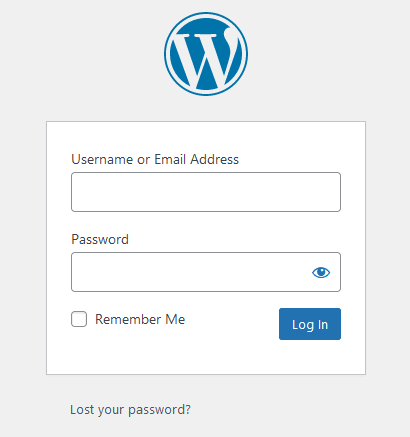
However, when you type [yourdomain.com/power](https://yourdomain.com/power) into your address bar, the code hands your browser a secure, 24-hour verification cookie. The guard checks your ID, marks you down as safe, and opens up the real dashboard login screen for you effortlessly.
Will I Ever Get Locked Out?
No. If you happen to forget your account password down the line, WordPress will send a secure reset link directly to your email address. We explicitly programmed a “VIP list” into the snippet ($allowed_actions) that tells the system to bypass the restrictions whenever an authorized password-recovery action is being processed from an official mail string.
Final Verdict
Securing your digital home doesn’t require adding complex, heavy frameworks to your backend architecture. By adopting this direct code solution, you strip bad actors of their primary target, protect your database execution queues from crashing under pressure, and keep your core files entirely clean.