


Have you ever copied a large amount of data to another SSD and then noticed that the destination folder shows a different size?
This happened to me while backing up one of my Final Cut Pro projects.
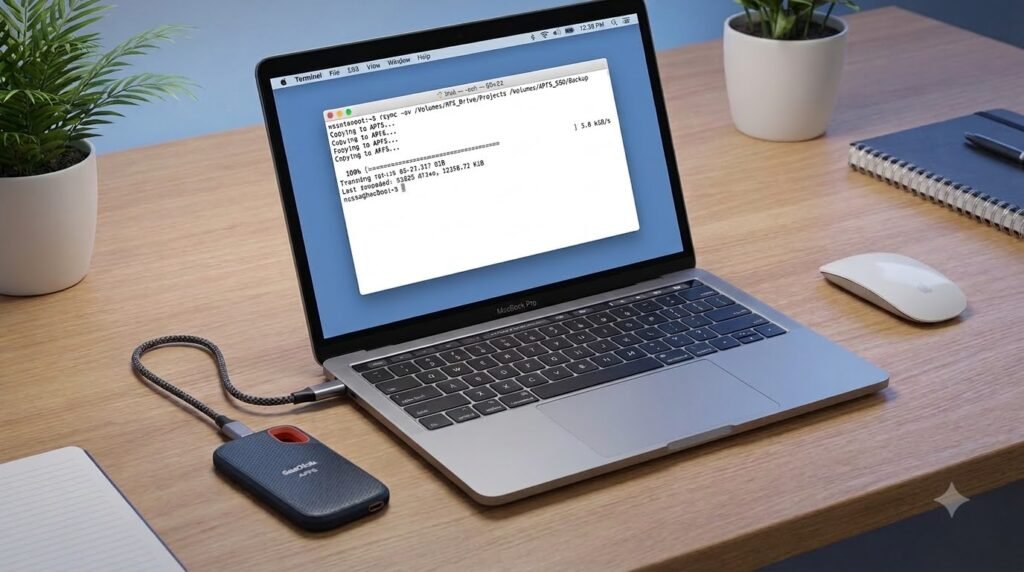
The source project was stored on an APFS drive, and I copied it to another SSD formatted as Journaled HFS+ (Mac OS Extended) using rsync.
After the copy completed, I checked the folder sizes and immediately noticed something that made me stop for a second.
Source:      253 GB
Destination: 250 GB
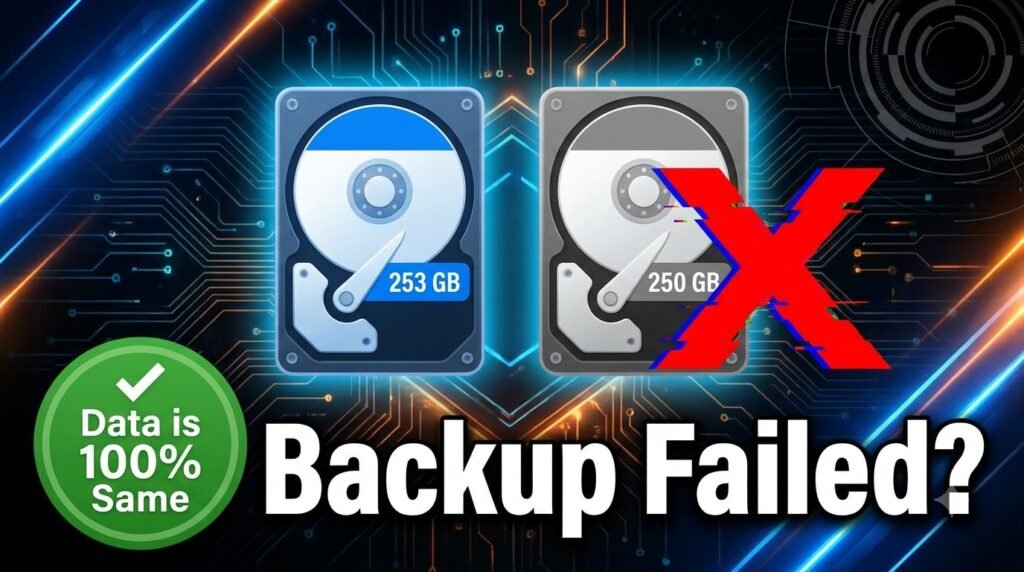
At first, I thought:
“Did rsync miss some files?”
Since this was a client project, I didn’t want to assume anything. Instead of copying the entire project again, I decided to verify the backup properly.
In this article, I’ll show you the exact steps I used.
Step 1 – Compare Folder Sizes
The first thing I checked was the total folder size.
du -sh "/Volumes/HD/Shawn_Projects/Films/TBP5/" \
"/Volumes/HD2/Shawn Film/TBP5/"
Example output:
253G    /Volumes/HD/Shawn_Projects/Films/TBP5/
250G    /Volumes/HD2/Shawn Film/TBP5/
At this point, it looked like the destination was missing around 3 GB.
But don’t panic yet.
du only reports disk space used, not whether your files are actually different.
Step 2 – Check Your rsync Version
Before doing anything else, I wanted to know which version of rsync I was using.
rsync --version
On my Mac, I got:
openrsync: protocol version 29
rsync version 2.6.9 compatible
This is the version included with macOS.
Step 3 – Check Which File System Each Drive Uses
Different file systems store data differently.
Run:
diskutil info "/Volumes/HD"
and
diskutil info "/Volumes/HD2"
Look for:
File System Personality
In my case:
Source SSD      → APFS
Destination SSD → Journaled HFS+
That turned out to be the biggest clue.
Step 4 – Compare the Number of Files
If files were actually missing, the file count would probably be different.
Let’s verify.
Source:
find "/Volumes/HD/Shawn_Projects/Films/TBP5" -type f | wc -l
Destination:
find "/Volumes/HD2/Shawn Film/TBP5" -type f | wc -l
My result:
14603
14603
Perfect.
Both folders contained exactly the same number of files.
Step 5 – Compare the Actual File Size
Now let’s calculate the real size of every file instead of checking allocated disk space.
Source:
find "/Volumes/HD/Shawn_Projects/Films/TBP5" \
-type f \
-exec stat -f %z {} \; | \
awk '{sum+=$1} END {printf "%.2f GB\n", sum/1024/1024/1024}'
Destination:
find "/Volumes/HD2/Shawn Film/TBP5" \
-type f \
-exec stat -f %z {} \; | \
awk '{sum+=$1} END {printf "%.2f GB\n", sum/1024/1024/1024}'
Output:
252.51 GB
252.51 GB
Now things started making sense.
Although du reported different folder sizes, the actual data size was identical.
Step 6 – Verify the Backup Using rsync
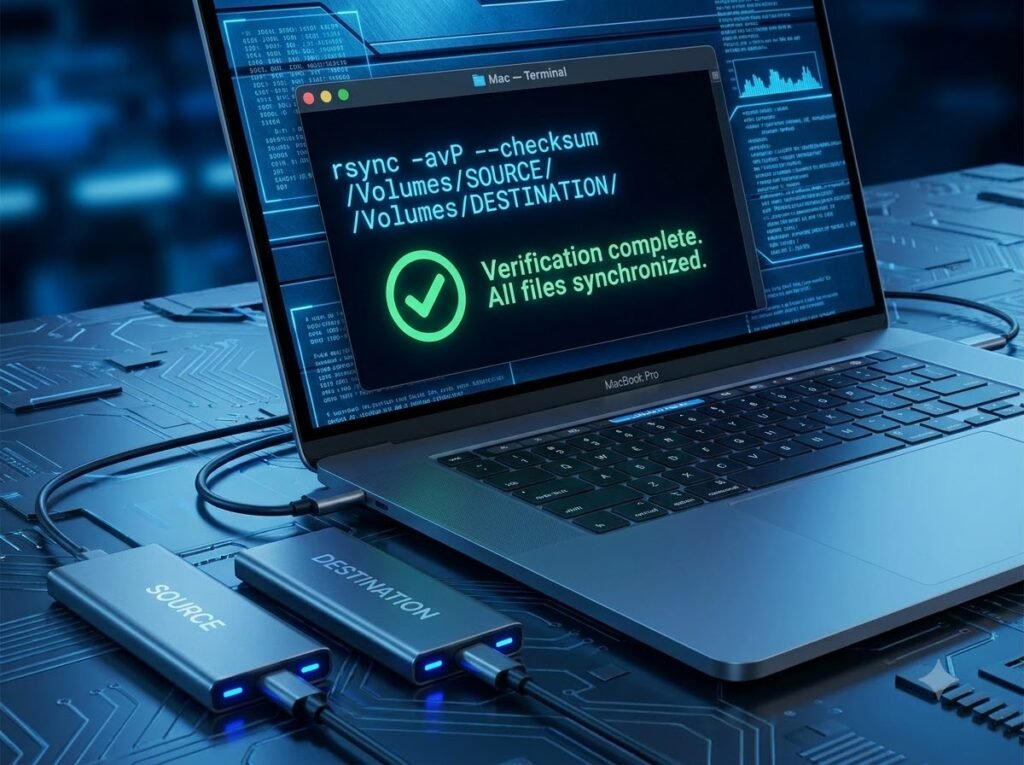
Finally, I used rsync’s checksum mode to verify the backup.
rsync -avhnc --delete \
"/Volumes/HD/Shawn_Projects/Films/TBP5/" \
"/Volumes/HD2/Shawn Film/TBP5/"
Let’s understand the options:
-a→ Archive mode-v→ Verbose-h→ Human-readable output-n→ Dry run (no changes made)-c→ Compare files using checksums--delete→ Show files that would be removed from the destination
If rsync only displays something like this:
sending incremental file list

sent xxx bytes
received xxx bytes
and doesn’t list any files, your backup is already synchronized.
So Why Did the Folder Size Differ?
The answer is simple.
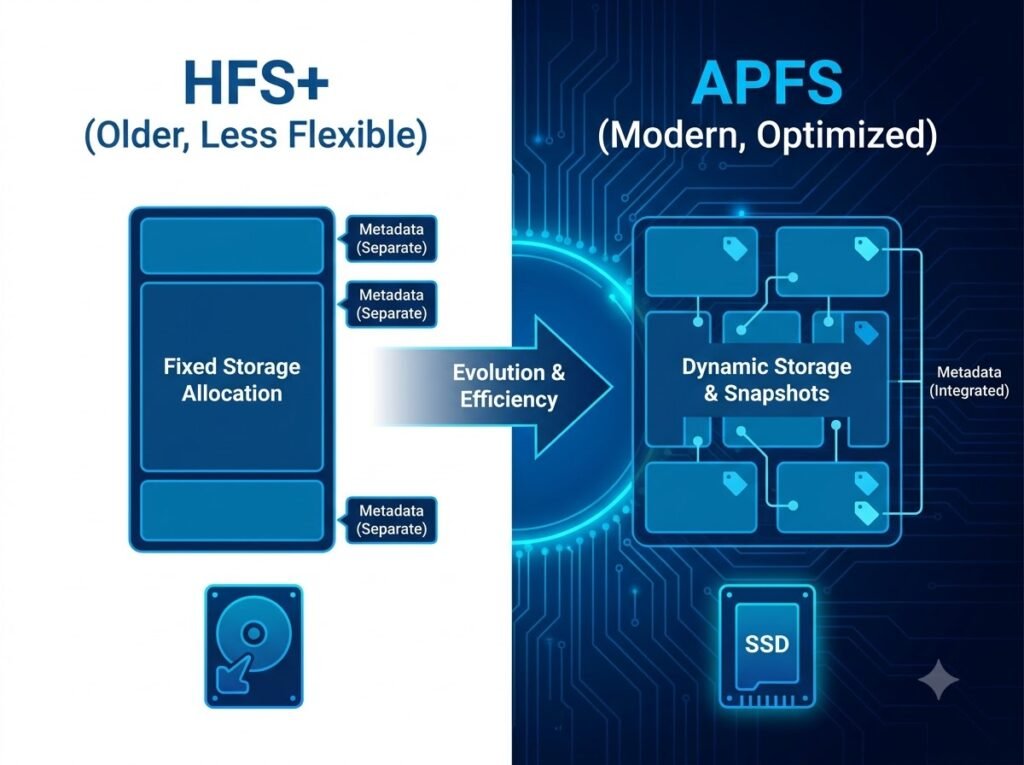
My source drive was using APFS.
The destination drive was using Journaled HFS+.
These file systems allocate storage blocks differently.
Even when every file is identical:
- metadata is stored differently
- block allocation differs
- filesystem overhead isn’t the same
As a result:
Folder Size ≠ Actual Data Size
This is completely normal.
When Should You Actually Worry?
A different folder size doesn’t automatically mean your backup failed.
Instead, check these things:
✅ Same number of files
✅ Same total file size
✅ rsync checksum verification passes
If all three checks succeed, your backup is almost certainly correct.
My Recommended Backup Workflow
Whenever I back up a large project, I follow this sequence:
1. Copy the project
rsync -avh --delete --progress \
"/Volumes/HD/Shawn_Projects/Films/TBP5/" \
"/Volumes/HD2/Shawn Film/TBP5/"
2. Check folder size
du -sh "/Volumes/HD/Shawn_Projects/Films/TBP5/" \
"/Volumes/HD2/Shawn Film/TBP5/"
3. Compare file count
find "/Volumes/HD/Shawn_Projects/Films/TBP5" -type f | wc -l

find "/Volumes/HD2/Shawn Film/TBP5" -type f | wc -l
4. Compare actual file size
Run the two find + stat + awk commands shown earlier.
5. Verify using rsync
rsync -avhnc --delete \
"/Volumes/HD/Shawn_Projects/Films/TBP5/" \
"/Volumes/HD2/Shawn Film/TBP5/"
If rsync reports no differences, your backup is complete.
Final Thoughts
It’s easy to panic when you see two drives reporting different folder sizes, especially if you’re working with important client projects.
In my case, the difference was caused by APFS and Journaled HFS+ storing data differently—not by missing files.
By checking the file count, calculating the real file size, and verifying everything with rsync, I confirmed that the backup was 100% successful.
The next time you see a 2–3 GB difference after copying files on macOS, don’t assume something went wrong.
Verify first.
A few simple Terminal commands can save you hours of unnecessary copying and give you confidence that your data is safe.